
Overview
Scribematic is an AI-powered ambient scribe designed to capture provider–patient conversations and transform them into EHR-ready medical documentation.
While recording the full encounter, Scribematic automatically filters out conversational pleasantries and non-essential dialogue, keeping only the clinically relevant information. This eliminates the need for post-visit dictation or manual documentation during the visit.
Providers can speak naturally, stay fully present with their patients, and rely on Scribematic to generate complete, structured, accurate notes.
The first step is always recording the patient encounter. After completing a recording, Scribematic provides multiple ways to finalize your note. Each finalization option is designed to support a different clinical workflow.
This article explains:
- What each finalize option does
- When to use it
- How the output differs depending on your selection
Understanding these options will help you choose the most efficient workflow for your practice.
Watch this video for a quick overview: How to Finalize Your Note
Tips & Best Practices
As you explore the finalization options, notice how:
- The structure of the note changes
- The level of detail varies
- The amount of user control increases
A helpful way to think about it:
- Quick Finalize → Fastest
- Checkbox Finalize → Structured speed
- Template Finalize → Full control
- Dictation Finalize → For notes dictated after the visit
- Inpatient Finalize → Continuity-based care
–Remember that Scribematic selections (like checkbox options) persist between visits
–Experiment with different options to find what best fits your documentation style
Step-by-Step Instructions for Finalizing Notes
1. Where to Find Finalization Options
Once you click Stop Recording, you will see several finalize options available at the bottom of the note.
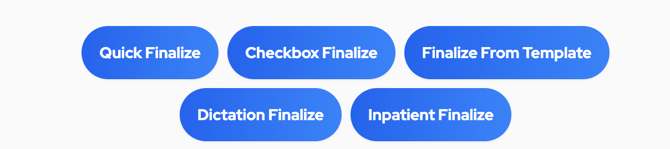
Each option serves a distinct purpose.
2. Quick Finalize
Best for: Simple, fast notes with minimal customization.
Quick Finalize:
- Automatically analyzes the encounter
- Determines relevant sections
- Generates a complete SOAP note
- Requires minimal input
This is the fastest way to turn a recording into a structured clinical note.
Use this when:
- You want speed and simplicity
- The encounter follows a standard outpatient structure
- You do not need highly customized formatting
3. Checkbox Finalize
Best for: Quick notes with more structural control.
Checkbox Finalize allows you to:
- Select specific Subjective sections
- Select specific Objective sections
- Control which components are included
This workflow is helpful when you want more predictability in your note structure while still working efficiently.
Pictured below are the sections available to choose to include in the Subjective sections and Objective sections of your note. Default templates are pre-loaded for Review of Systems, Exam, Specialized Exam and Procedure. You can upload as many of your own templates as you like.
Note: These selections are held between finalizations, if you have a standard set of required fields for your note, you will not need to select or adjust in checkbox finalize every visit. You only need to open the dropdown menu if you want to make changes to your previous selection.
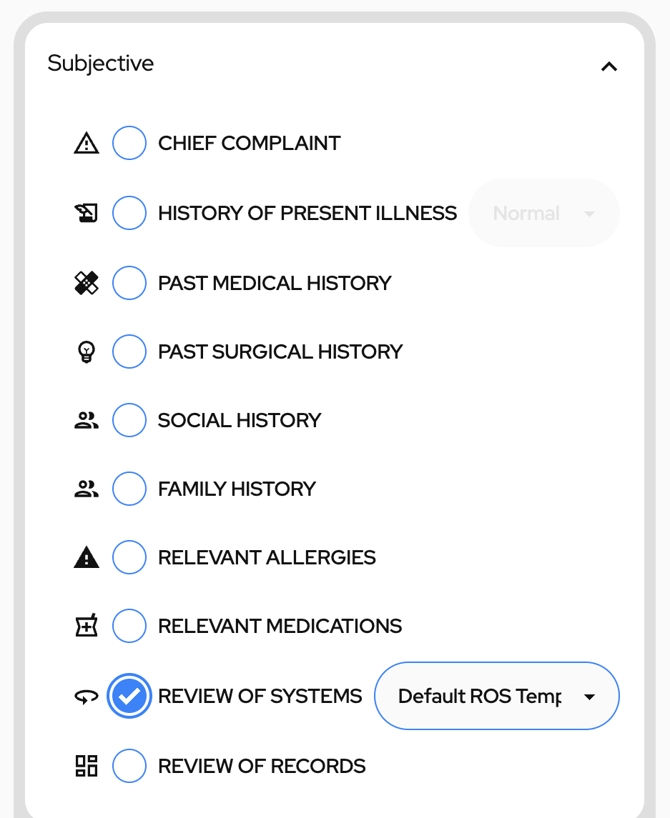
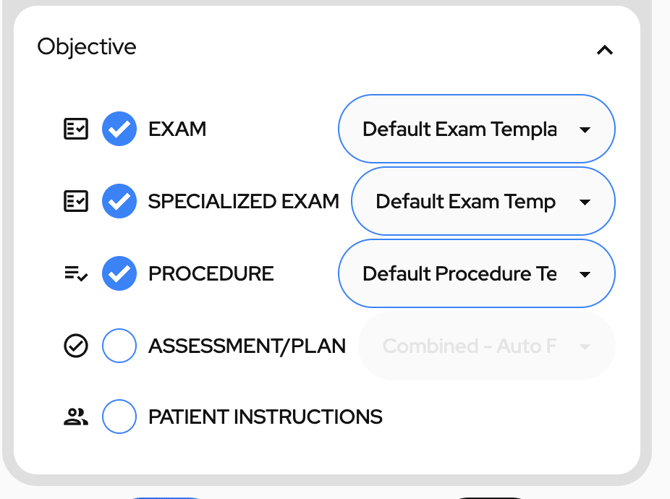
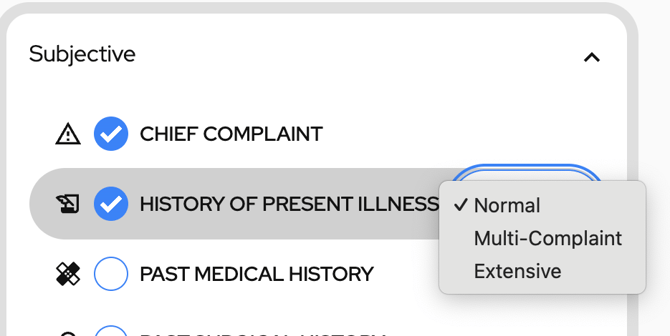
Options for History of Present Illness:
You can select multi-complaint or extensive for your History of Present Illness.
Options for Assessment and Plan:
You can select the format of your assessment and plan from the checkbox finalize objective menu.
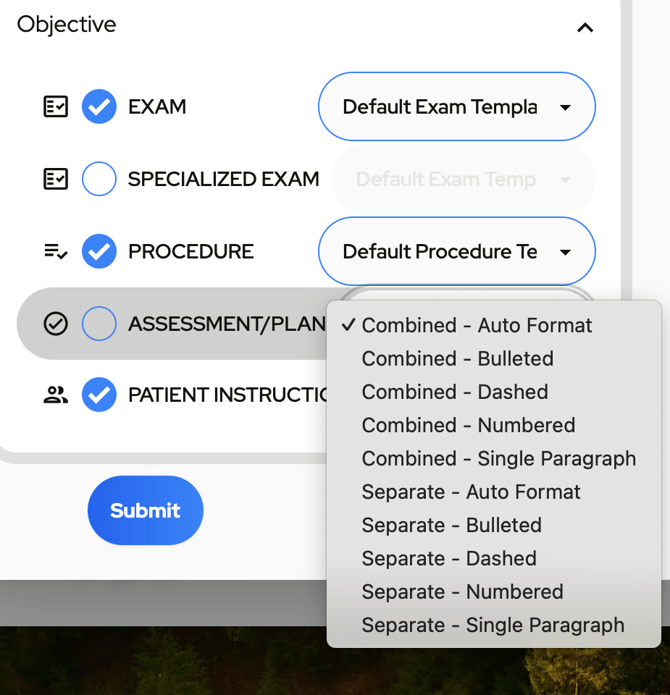
Use Checkbox Finalize when:
- You routinely document specific exam elements
- You want to standardize note structure
- You prefer guided customization rather than full templating
Watch this video: How to Create an Exam Template.
Refer to the KB Templates Article
4. Finalize from Template
Best for: Full customization and specialty-specific workflows.
Finalize from Template allows you to apply a “My Complete Note” template you have created to your recording.
Templates allow you to:
- Define exact structure and section order
- Insert specialty-specific instructions
- Mirror your documentation style
- Add structured prompts or formatting rules
This is the most powerful finalization option available.
Use this when:
- You want full control over structure
- You practice in a specialty with specific documentation standards
- You want consistency across all notes
Watch this video for a brief overview of templates: Use Templates
📌 Templates are covered in detail in a separate article.
5. Dictation Finalize
Best for: Physicians who prefer post-visit dictation-style workflows rather than recording live encounters.
Dictation Finalize is designed for situations where you are:
- Speaking directly into the microphone
- Reading structured information
- Creating documentation outside of a patient conversation
It includes multiple formatting options pictured below. The bottom choice, “My Complete Note,” lets you select a template you have created for your dictation format.
To create templates, refer to the KB template article or watch this video: Use Templates
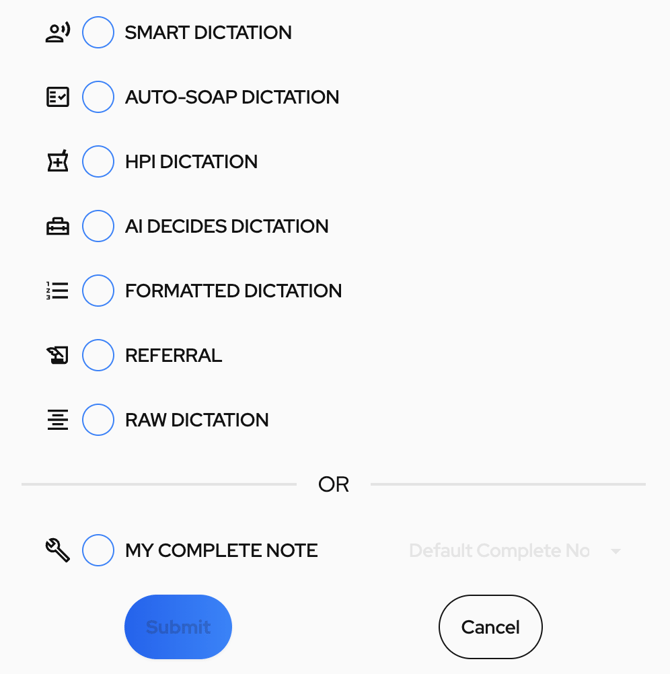
Use this when:
- You prefer traditional dictation workflows
- You are documenting after a visit instead of recording during a visit
6. Inpatient Finalize
Best for: Rounding, handoffs, and multi-clinician discussions.
Inpatient Finalize is designed for:
- Hospital rounding
- Care transitions
- Conversations involving multiple clinicians
- Longitudinal or continuity-based documentation
This workflow supports more complex, ongoing patient care discussions. When finalizing with “Inpatient Finalize,” you will be given the choice of selecting between “clinical discussion” and “Systems Based Assessment and Plan.”
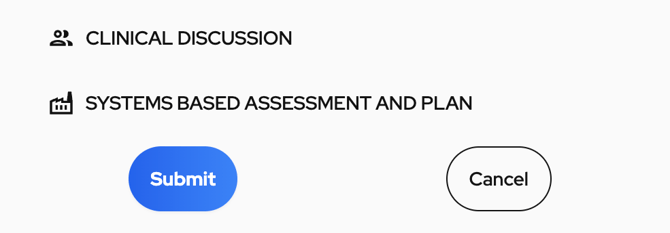
Select Clinical Discussion when conducting an extensive discussion of the patient’s situation. Does well listening in on rounding. Will combine subjective/objective findings, history, etc. into a relevant clinical discussion.
Select Systems Based Assessment and Plan when an extensive list of systems is discussed or mentioned in the patient (ie. cardiovascular, gastro) and the current system status and plan are mentioned.
Use this when:
- You are documenting inpatient care
- Continuity and context across encounters matter
- The conversation involves multiple providers
What’s Next?
Once you are comfortable selecting the appropriate finalization workflow, the next step is learning how to:
- Create templates
- Customize your note structure
- Optimize documentation for your specialty
Continue to the Templates article to learn how to unlock the full customization power of Scribematic.
Additional Resources
If you have questions or would like personalized guidance, our team is available to assist you.
Contact the Scribematic Support team through the in-platform chat icon for assistance or email support@scribematic.ai.
Schedule a free one-on-one Zoom product walk through: Schedule Demo Here
Video Resources: