
Overview
Templates are one of the most powerful features in Scribematic. They allow clinicians to shape notes to match their exact documentation style, specialty requirements, and clinical voice.
With well-built templates, Scribematic can reliably and consistently match your documentation standards.
This article provides a high-level overview of Scribematic’s template types and explains how to create, use, and refine templates over time.
Tips & Best Practices
- Use templates to standardize documentation structure across your notes
- Leverage templates to maintain consistency and reduce post-visit editing time
- Start simple—many templates can be created by copying existing EHR macros
- Be specific in your instructions to improve AI output quality
- Refine templates over time—small adjustments can significantly improve results
- Include examples when possible to guide Scribematic toward your preferred style
- Add instructions in your templates for what to avoid if output is not meeting expectations
Step-by-Step Instructions
Access the Templates Workspace
- Sign in to Scribematic
- Navigate to the Templates tab
From here, you can:
- Create new templates
- Edit existing templates
- Explore the Sample Template Library
Understand Template Types
Scribematic supports several types of templates that serve different purposes in the documentation workflow.
Exam, Review of Systems, and Procedure Templates
These templates are designed to be used within Checkbox Finalize. When finalizing a note with Checkbox Finalize, you will see a series of dropdown menus. Your Exam, Review of Systems and Procedure templates will be available for selection there.
Many clinicians already use structured Exam, ROS, or Procedure templates inside their EHR. These templates can often be copied directly into Scribematic and saved for use during Checkbox Finalization.
This allows providers to maintain familiar documentation formats while benefiting from AI-generated notes.
My Complete Note Templates
My Complete Note templates provide maximum control over Scribematic’s output.
When Finalize from Template is selected, the template defines the full structure of the note and instructs the AI on how each section should be written.
This option is ideal for clinicians who want their notes to closely follow a specific documentation format.
Watch this video for a brief overview of My Complete Note templates: Use Templates
Create an Exam Template
- Navigate to the “Templates” tab.
- Select “Exam” at the top left of the template home page.
- View the sample templates to get familiar with the format. Use your current physical exam "macros" to create AI-driven exam templates. In your Scribematic exam template, list body systems and a default output. During an encounter, when a clinician describes a condition, like "erythematous rash on the left proximal forearm," the AI will incorporate that description, replacing the default output.
- Return to “Exam” at the top left of the template home page.
- Select “Create Template”
- Name your template and add content. Frequently it is as simple as copying and pasting an exam template you already have into the content box. Save to your template library.
- To use this template when finalizing a note, select Checkbox Finalize >.Objective > Exam > Select the template from the drop down menu.
- Test out your new template and make any adjustments needed.
Watch this video for step by step instructions: How to Create an Exam Template
Create A “My Complete Note” Template
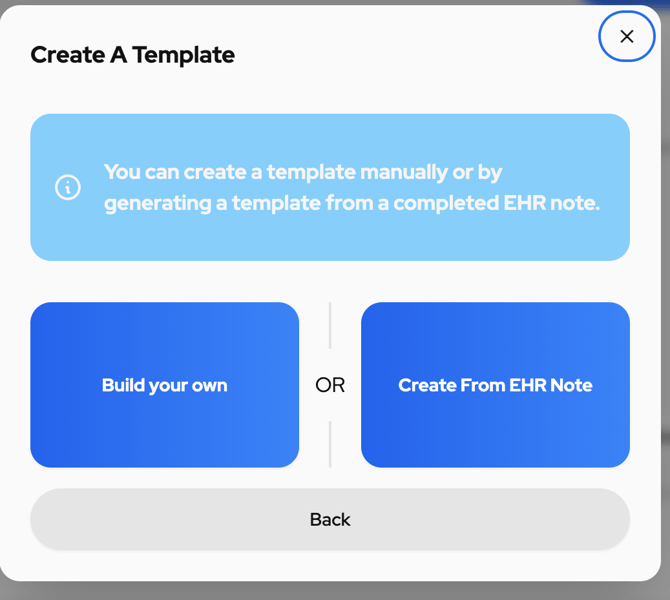
When creating a My Complete Note template, Scribematic provides two primary options:
- Build Your Own Template
- Create from EHR Note
Each method allows you to tailor Scribematic’s output to your preferred documentation style.
Build Your Own Template
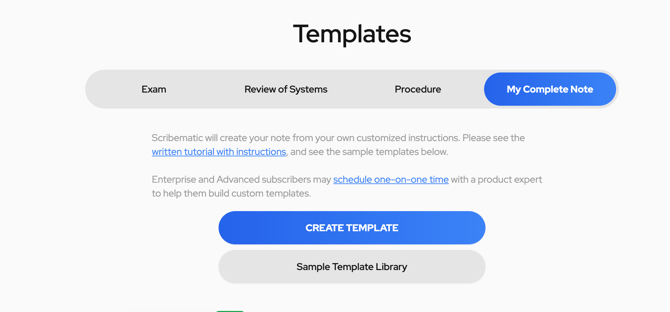
Go to Templates > My Complete Note > Create Template
Select Build Your Own >
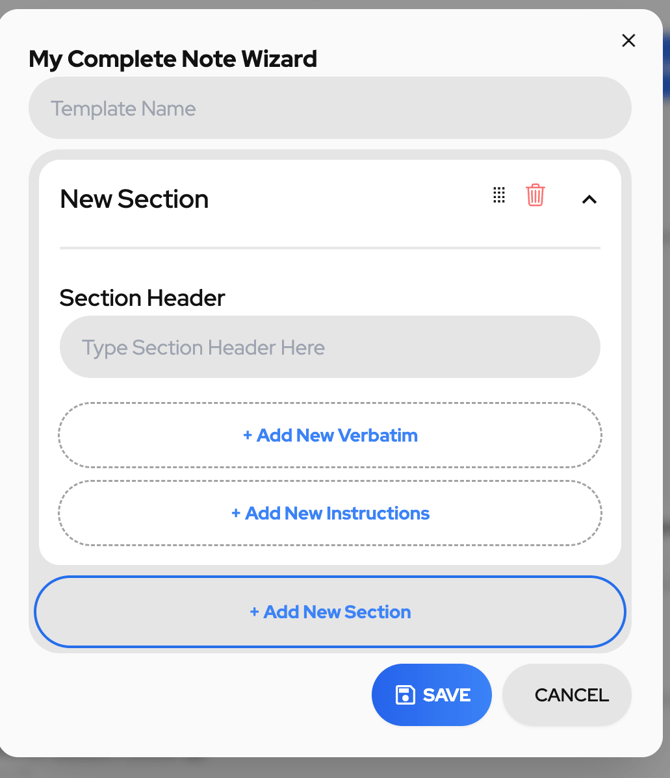
- Name the template
- Add sections to template: Section headers, Verbatims or Instructions
- Your newly generated template will appear inside your template library
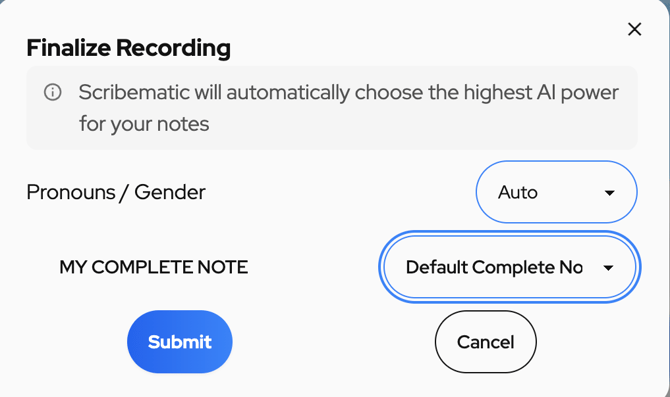
- When you are ready to finalize a note in recordings and want to use your template, select “Finalize from Template.” Select the drop down menu to the right of “My Complete Note.” All the templates you have saved to your account will appear in alphabetical order. You can select the template you would like to use for that note.
This approach gives users full control over how their documentation is structured.
Create a Template from EHR note
This option allows you to upload an existing medical note that reflects your preferred structure and style.
Scribematic analyzes the document and automatically generates a template that mirrors the note’s sections and formatting.
This method is often the fastest way to replicate documentation styles already used within an EHR.
- Select “Create Template” in the center of the template home page.
- Select “Create From EHR Note”
- Name your template.
- Copy and paste a completed note from your EHR into the box. The AI will use that note to inform a template that will be built especially for you.
- Select “Generate Template”
- Your newly generated template will appear inside your template library
- Select the new template for review and editing.
- Remember, with all templates, editing over time will help you hone in on your desired output. Create from EHR note gives you a jumping off point fast!
- When you are ready to finalize a note in recordings and want to use your template, select “Finalize from Template.” Select the drop down menu to the right of “My Complete Note.” All the templates you have saved to your account will appear in alphabetical order. You can select the template you would like to use for that note.
Use the Sample Template Library
Scribematic also provides a Sample Template Library containing pre-built templates organized by specialty.
How It Works
- Select “Sample Template Library” (middle of template home page)
- Browse templates by specialty
- Save a template to your account.
- Customize the template by adding or removing sections using the “Edit” button at the bottom of the template.
- When you are ready to finalize a note in recordings and want to use your template, select “Finalize from Template.” Select the drop down menu to the right of “My Complete Note.” All the templates you have saved to your account will appear in alphabetical order. You can select the template you would like to use for that note.
This library can be a helpful starting point for clinicians who are new to template building.
Share Templates (Enterprise Users)
Providers within the same Enterprise Group can share templates with one another. Many organizations choose to standardize documentation by creating templates that are used across the entire practice.
These templates can be preloaded into individual user accounts to ensure consistency and streamline workflows.
For more information, refer to the Enterprise knowledge base article.
Best Practices for Template Refinement
Templates often improve with small adjustments over time.
Helpful Tips
- Revisit templates during your first few weeks of use. Taking the time to refine your template is often important, especially the more specific or specialized the output you are looking for is.
- Be specific when writing instructions for the AI. Generic input can often result in generic output.
- Include guidance about what information or behavior should be avoided. If you are seeing output that isn’t to your liking, add instructions against that output.
- Provide example notes or sections when possible to help Scribematic mirror your style. The more data that the AI has on how you would like your notes, the better it will perform. Try this: “This section should be formatted like the following example, please note that this is just an example and the data contained therein is from a different patient and not to be confused with the patient at hand:”
- It is helpful to think of template creation as an iterative process.
- As you refine instructions and adjust sections, Scribematic’s output will increasingly align with your preferred documentation style.
- Small refinements can significantly improve note accuracy and consistency.Use Your
When you are ready to finalize a note in recordings and want to use your template, select “Finalize from Template.” Select the bubble to the right of “My Complete Note.” All the templates you have saved to your account will appear in alphabetical order. You can select the template you would like to use for that note.
Additional Resources
If you have questions or would like personalized guidance, our team is available to assist you.
Contact the Scribematic Support team through the in-platform chat icon for assistance or email support@scribematic.ai.
Schedule a free one-on-one Zoom product walk through: Schedule Demo Here
Video Resources: