
Overview
This article provides a high-level overview of Scribematic’s workflow and guides you through creating your first medical note.
Scribematic is an ambient listening medical scribe designed to capture the full provider–patient encounter and transform that conversation into a structured, professional medical document using AI. The completed note is designed to be reviewed and then entered into your permanent medical record.
Best Practices and Tips
- Choose the device (cell phone, tablet, laptop) that best supports your workflow. Many providers record their visit on a phone or tablet and then edit and upload to EHR later on desktop.
- Scribematic is fully web-based and accessible on desktop, tablet, or mobile devices.
- Scribematic works best when it has clear context. It picks up what it hears and what’s included in your templates.
- Some providers find that starting the recording pre-visit with a quick intro with the patient’s name, age, gender, and reason for visit reduces post-visit edits.
- Introduce yourself and anyone else in the room so Scribematic knows who to listen for
- Narrate your exam: briefly describe what you’re doing and call out key findings as you go. Scribematic can’t see what you’re doing. It can only hear what you are saying.
- Feel free to be as personable as you like with your patients. Scribematic will only include what is medically relevant in the finalized note it creates for your EHR.
Step-by-Step: Creating Your First Note
1. Log In
Navigate to scribematic.ai and log into your account.
2. Start a Recording
- Click the Recordings tab at the top of your screen.
- Select the large blue Start button.

- Enter the patient's name or initials for your note when prompted.
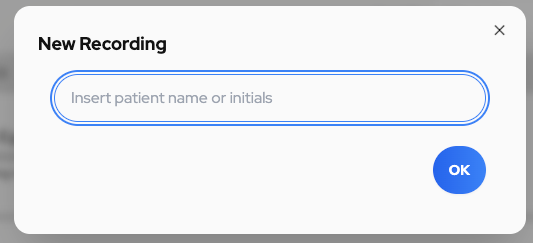
- Click blue Record to begin.
You may now conduct your patient encounter as you normally would. Scribematic will capture the full visit in the background.
Note - first time users may need to allow browser permissions to access their microphone.
3. Stop the Recording
When the encounter is complete:
- Click the blue Record button again to stop recording.
- You will be prompted to select a finalization method.
Choosing a Finalization Option
Scribematic provides multiple finalization options to optimize for your workflow preferences.
For first-time users, we recommend:
- Quick Finalize – for a fast and reliable SOAP note.
- Checkbox Finalize – Offers structured control over note components while remaining streamlined.
(For a detailed comparison of finalization options, please refer to our dedicated article on Finalization Methods.)
In most introductory workflows, Quick Finalize is recommended.
See article on “Finalization Options”
Reviewing Your Generated Note
Once finalized, Scribematic generates a completed medical document
Before moving the note into your permanent records:
- Carefully review the document.
- Use Scribematic’s editing tools to make any necessary adjustments. (Please refer to our article “How to edit notes”).
- Confirm accuracy and completeness.
Moving the Note to Your EHR
Scribematic is EHR-agnostic, meaning it is designed to work alongside any Electronic Health Record system right out of the box.
To transfer your note:
- Copy individual sections manually or with the “Copy” button to the top right of individual note sections, or
- Click the “Copy All” button at the top of the document to copy the full note at once.
Paste the content directly into your patient chart within your EHR.
Additional Resources
If you have questions or would like personalized guidance, our team is available to assist you.
Contact the Scribematic Support team through the in-platform chat icon for assistance or email support@scribematic.ai.
Schedule a free one-on-one Zoom product walk through: Schedule Demo Here
Video Resources
How to Use Scribematic in Under 3 Minutes
Other Related KB articles:
Finalization Options Explained [link]
- How to Edit Notes [link]
- Audio, Recording and Telemedicine [link]