
Overview
Scribematic is an ambient AI medical scribe that captures the full provider–patient interaction and organizes it into a structured, EHR-ready medical document.
While Scribematic is designed to require minimal editing, providers are always responsible for reviewing and finalizing their notes before signing or exporting.
Watch the video Edit Your Note
Best Practices and Tips
- Edits made through manual editing or Talk to Your Note modify the completed note.
- These edits do not change the original audio recording.
- If you refinalize your note for any reason, edits will be lost.
- If you want to make additions or changes to the original recording you can unfinalize your note and resume recording. See [Pausing and resuming recording KB article]
____________________________________
Step-by-Step:
Method 1: Making Quick Manual Edits
If you only need to make small corrections, you can edit sections directly.
Once your note has been generated, you will see an edit button at the top right of each section of your note:
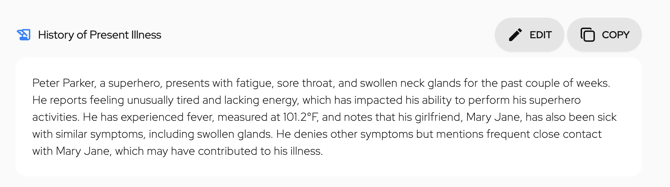
This allows you to go in and make changes manually.
** Reminder: If you refinalize your note after you have made edits, you will lose those edits because they have not been applied to the original recording.
Step-by-Step:
Method 2: Using “Talk to Your Note” for Advanced Edits
For more complex changes, Scribematic allows you to give instructions directly to the AI using the Talk to Your Note feature.
This is especially useful for:
- Structural changes
- Formatting adjustments
- Global corrections (e.g., patient name updates)
- Reorganizing sections
Step 1: Select “Talk to Your Note”
After your note has been generated, you will see the Talk to Your Note button at the top of your note:
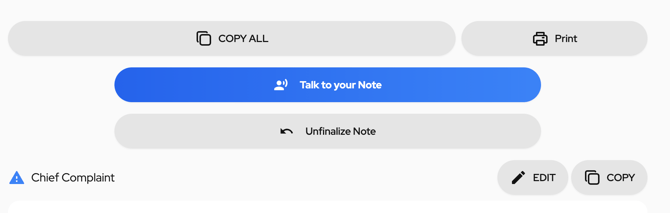
Step 2: Enter Your Instruction
You can either:
- Speak your instruction
- Or type it directly into the input field
Example 1: Changing Formatting
You might say:
“Please present the HPI as a bulleted list.”
After submitting, the AI will immediately restructure the HPI into a bulleted format.
Example 2: Correcting a Patient Name Globally
If the AI misspells a patient’s name:
- Type the correct spelling into the Talk to Your Note field
- Resubmit to the AI
The system will update the name consistently throughout the note.
Best Practices for “Talk to Your Note”
For best results:
- Be clear and specific in your instructions
- Reference the section you want updated (e.g., HPI, Assessment)
- Provide exact spelling for corrections
- Use natural language — no special formatting required
You can experiment with:
- Changing paragraph structure
- Reordering sections
- Adding clarifications
- Simplifying language
- Expanding clinical detail
Additional Resources
If you have questions or would like personalized guidance, our team is available to assist you.
Contact the Scribematic Support team through the in-platform chat icon for assistance or email support@scribematic.ai.
Schedule a free one-on-one Zoom product walk through: Schedule Demo Here
Video Resources: Edit Your Note