
Overview
Scribematic includes several advanced features and optional settings designed to improve:
-
Documentation accuracy
-
Workflow efficiency
-
Customization
-
Note consistency across encounters
-
While these settings are not required for basic use, they can significantly enhance your documentation workflow as your practice needs grow.
Most advanced settings can be found under:
Account → Settings
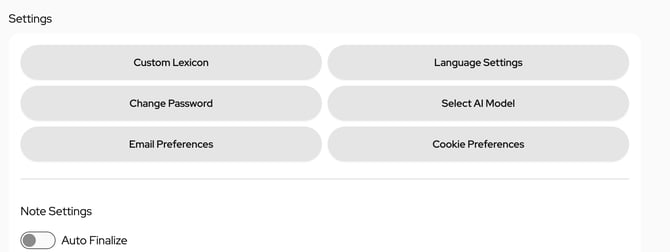
This article explains how to use:
-
Custom Lexicon
-
Language Settings
-
AI Model Selection
-
Auto Finalize
-
Copy Forward
-
EHR Integrations
Best Practices & Tips
Recommended Starting Features
Most providers benefit first from:
-
Custom Lexicon
-
Auto Finalize
-
Copy Forward
These settings often create the biggest workflow improvements with minimal setup.
Best Practices for Optimization
-
Add frequently misspelled terms to Custom Lexicon early
-
Use Auto Finalize after establishing a preferred finalize workflow
-
Leave AI Model Selection on Automatic unless you have a specific workflow preference
Important Reminder
Scribematic stores records for 30 days.
Features such as Copy Forward will only work for encounters within that timeframe.
Step-by-Step Instructions
Custom Lexicon
Scribematic’s medical vocabulary is robust and continuously updated. However, due to the complexity of medical documentation, there may be times when the AI encounters words it cannot accurately interpret. These cases can include medications, health and wellness products, individual names, or the name of your practice.
With the Custom Lexicon feature, you can provide this additional context to the AI, ensuring that important terms are consistently recognized and spelled correctly.
Purpose: Improve documentation accuracy for commonly misinterpreted terms.
Go to Account > Settings > Custom Lexicon
Custom Lexicon allows you to define:
- Provider Names: Many providers find it helpful to add their name to the Custom Lexicon to ensure the AI spells it correctly
- Medication names: Scribematic has an extensive medical vocabulary. If you notice it mispells a medication, add it to your custom lexicon and it will get it right going forward.
- Practice-specific terminology
Once added, Scribematic will consistently document those terms correctly in future notes.
For more details watch this video: How to Use Custom Lexicon in Scribematic
Language Settings
Purpose: Control the output language of your notes.
Go to Account > Settings > Language Settings
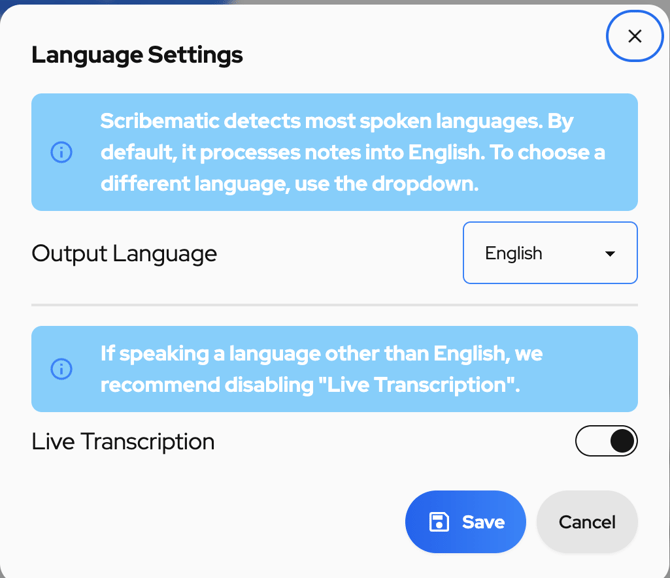
Scribematic:
- Automatically detects the language spoken during a visit
- Does not require manual input settings for language detection
- Allows you to choose your preferred note output language
Live transcription is currently available in English.
For more details, watch this video: Multi Language
Link to article on Audio, Recording and Telehealth Section on “Mixed Languages and Multi-Lingual Visits”
AI Model Selection
Purpose: Adjust performance preferences.
Go to Account > Settings > Select AI Model
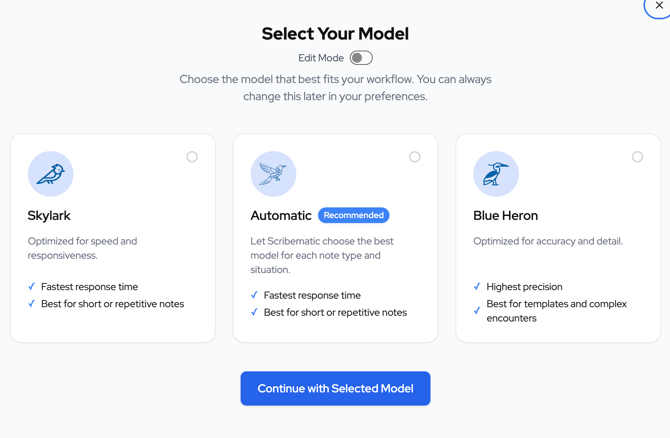
Scribematic uses multiple AI models to generate notes. By default:
- The Automatic Router selects the most appropriate model for your recording
However, you can manually select models if you prefer:
- Faster processing
- More detailed formatting
- Specific output behaviors
Most users benefit from leaving the automatic model selected, but customization is available if needed.
Auto Finalize
Purpose: Automate your workflow.
Go to Account > Note Settings > Auto Finalize
Auto Finalize automatically completes a note as soon as a recording ends using your most recently selected finalize option.
This works best when:
- You use the same finalize method consistently
- You want to reduce clicks
- You prefer a streamlined workflow
This feature can significantly speed up documentation once your workflow is established.
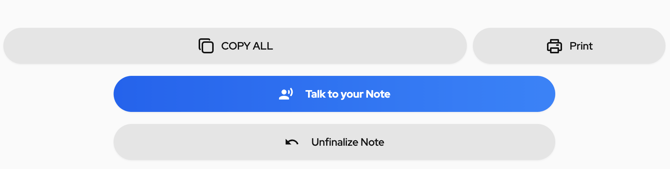
Note: If your note is “Autofinalized” and then you decide you weren’t ready to finalize it, you can “unfinalize” the note. Scroll to the top of your note to find the “unfinalize” option.
Copy Forward
Purpose: Maintain continuity across encounters.
Copy Forward allows you to start a new note using a previous note as context.
This is especially useful for:
- Inpatient care
- Rounding
- Follow-up visits
- Longitudinal care documentation
Scribematic uses prior context to support structured and consistent documentation.
Select the note from the patient’s previous visit. Once this note has been finalized, you will see an icon (box with arrow) for “copy forward” in the top right corner (see below).
Select “copy forward,” name your new note, and then tap the microphone to begin the new visit. The new notes will include the information from the first visit as well as the current visit.
Scribematic only stores your records for 30 days, so this feature will only work on visits that are within 30 days of each other.
EHR Integrations
Scribematic integrates with multiple EHR systems, with additional integrations in progress.
Go to Account > Integration > Manage Integration
Integrations allow for:
- Streamlined workflows
- Reduced manual copying and pasting
- Improved documentation efficiency
If you need assistance:
- Support documentation is available
- The Scribematic team can help guide setup
Additional Resources
If you have questions or would like personalized guidance, our team is available to assist you.
Contact the Scribematic Support team through the in-platform chat icon for assistance or email support@scribematic.ai.
Schedule a free one-on-one Zoom product walk through: Schedule Demo Here
Video Resources: